

Introduction
In this blog post, you’ll learn how to manage SSH keys and define network rules using security groups. The following sections also cover how to create and manage user roles.
Requirements
All you need is access to the Cloud&Heat Horizon dashboard with an active project.
SSH keys
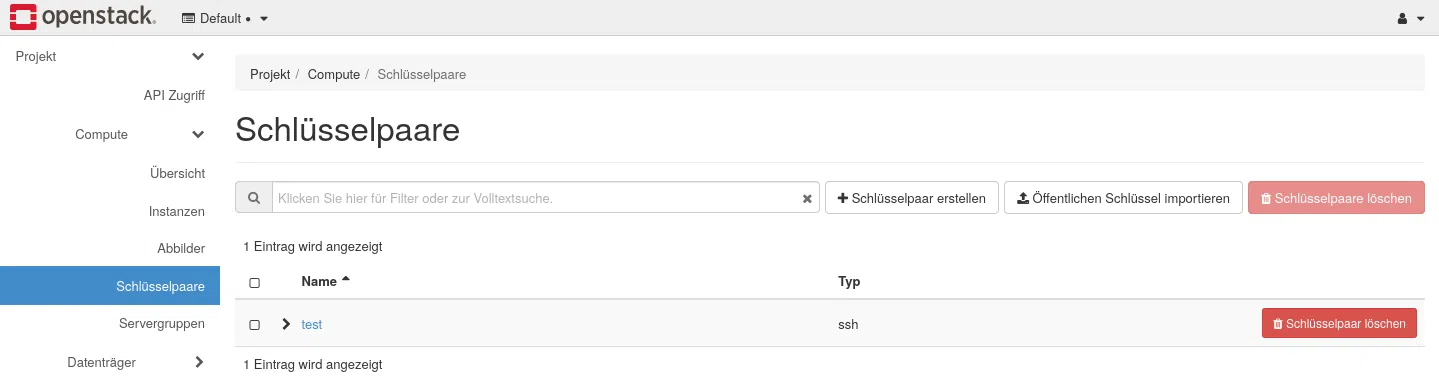
You can find your SSH key under the menu option Compute > Key pairs manage.
Here you have the option to generate new key pairs or, alternatively, to upload an existing public key to access the OpenStack infrastructure.
Security Groups
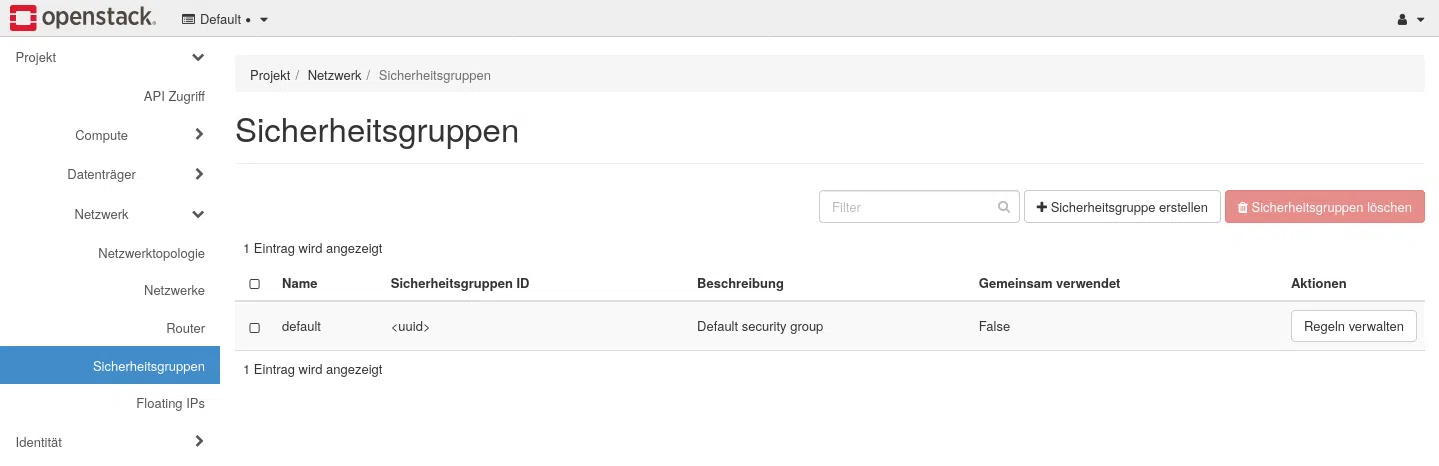
By default, external access to your virtual machines is restricted. Using security groups, you can define rules for both incoming and outgoing network traffic. You can find the security groups under the menu item Network > Security Groups.
By default, the security group is default active, which blocks all incoming connections and allows outgoing connections.
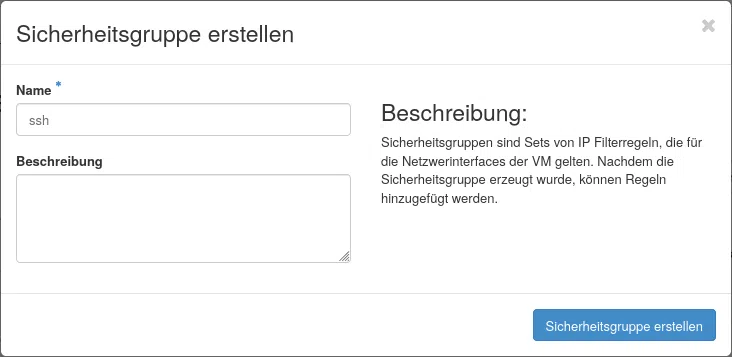
Adds a new security group if required using the button Add a security group in addition.
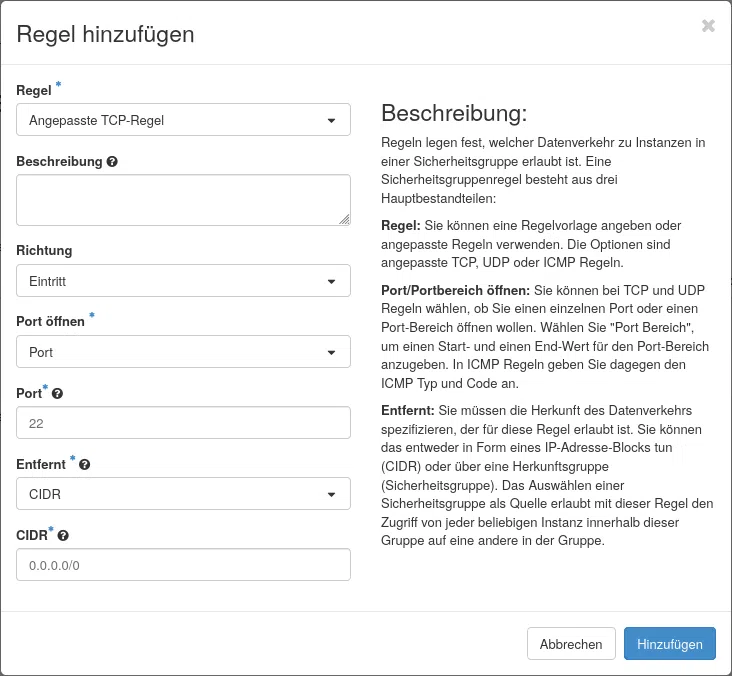
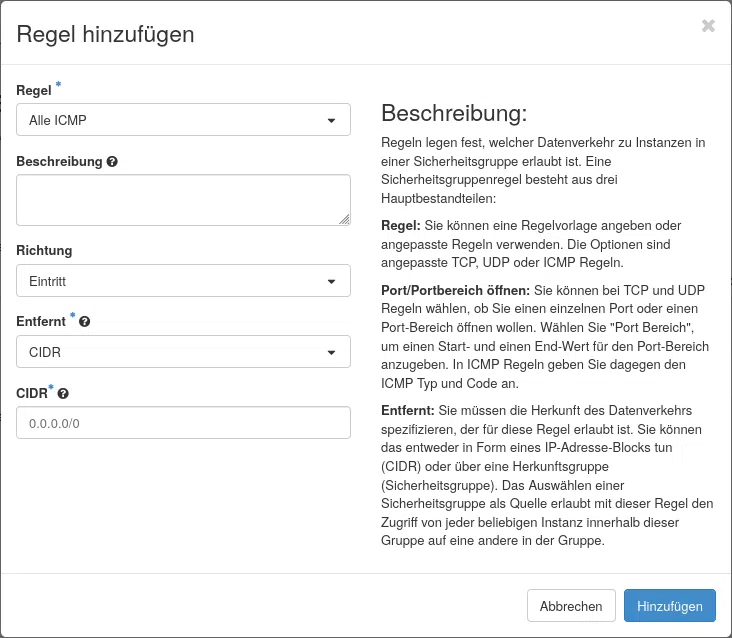
Adding the group will take you to the security rules overview. Here, you can use the button Add a rule Define a rule for the security group.
We will look at the procedure using an ICMP rule as an example.
Also adds a security group ping and adds an ICMP rule.
Alternatively, you can also set up security groups and rules using the OpenStack CLI:
openstack security group create ssh
create an OpenStack security group rule --protocol tcp --dest-port 22 --ingress ssh
openstack security group create icmp
create an OpenStack security group rule --protocol icmp icmpYou can find further tutorials on working with OpenStack cloud environments here.
Contact
Are you not yet using our OpenStack cloud and interested in our IaaS? Please feel free to get in touch.